

没有什么比使用自己的工具构建真实的东西更能找到改进方法了。
在过去几个月里,我们一直在开发 Catalyst,我们对 Headless UI 进行了许多改进,让您可以编写更少的代码,并使开发者体验更好。
我们刚刚发布了 Headless UI v2.0 for React,这是所有这些工作的结晶。
以下是所有最好的新内容:
通过从 npm 安装最新版本的 @headlessui/react 将其添加到您的项目中:
npm install @headlessui/react@latest如果您是从 v1.x 升级,请查看升级指南以了解更多有关更改的信息。
内置锚点定位
我们已将 Floating UI 直接集成到 Headless UI 中,因此您无需担心下拉菜单超出视图或被屏幕上的其他元素遮挡。
使用 Menu、Popover、Combobox 和 Listbox 组件上的新 anchor 属性来指定锚点定位,然后使用 CSS 变量(如 --anchor-gap 和 --anchor-padding)微调位置:
Scroll up and down to see the dropdown position change
import { Menu, MenuButton, MenuItem, MenuItems } from "@headlessui/react";function Example() { return ( <Menu> <MenuButton>Options</MenuButton> <MenuItems anchor="bottom start" className="[--anchor-gap:8px] [--anchor-padding:8px]" > <MenuItem> <button>Edit</button> </MenuItem> <MenuItem> <button>Duplicate</button> </MenuItem> <hr /> <MenuItem> <button>Archive</button> </MenuItem> <MenuItem> <button>Delete</button> </MenuItem> </MenuItems> </Menu> );}这个 API 真正的好处是,您可以通过使用实用程序类(如 sm:[--anchor-gap:4px])更改 CSS 变量,从而在不同的断点调整样式。
查看每个组件的锚点定位文档以获取所有详细信息。
新的复选框组件
我们添加了一个新的 headless Checkbox 组件来补充我们现有的 RadioGroup 组件,从而可以轻松构建完全自定义的复选框控件:
This will give you early access to any awesome new features we're developing.
import { Checkbox, Description, Field, Label } from "@headlessui/react";import { CheckmarkIcon } from "./icons/checkmark";import clsx from "clsx";function Example() { return ( <Field> <Checkbox defaultChecked className={clsx( "size-4 rounded border bg-white dark:bg-white/5", "data-[checked]:border-transparent data-[checked]:bg-blue-500", "focus:outline-none data-[focus]:outline-2 data-[focus]:outline-offset-2 data-[focus]:outline-blue-500", )} > <CheckmarkIcon className="stroke-white opacity-0 group-data-[checked]:opacity-100" /> </Checkbox> <div> <Label>Enable beta features</Label> <Description>This will give you early access to any awesome new features we're developing.</Description> </div> </Field> );}复选框可以是受控的或非受控的,并且可以自动将其状态与隐藏的输入同步,以便与 HTML 表单完美配合。
查看 Checkbox 文档以了解更多信息。
HTML 表单组件
我们添加了一整套新的组件,这些组件只是包装了原生表单控件,但会自动为您完成所有繁琐的 ID 和 aria-* 属性的连接工作。
以下是构建一个带有正确关联的 <label> 和描述的简单 <input> 字段的样子:
<div> <label id="name-label" for="name-input"> Name </label> <input id="name-input" aria-labelledby="name-label" aria-describedby="name-description" /> <p id="name-description">Use your real name so people will recognize you.</p></div>以下是使用 Headless UI v2.0 中这些新组件的样子:
import { Description, Field, Input, Label } from "@headlessui/react";function Example() { return ( <Field> <Label>Name</Label> <Input name="your_name" /> <Description>Use your real name so people will recognize you.</Description> </Field> );}新的 Field 和 Fieldset 组件还会像原生 <fieldset> 元素一样级联禁用状态,因此您可以轻松地一次禁用一组控件:
Select a country to see the region field become enabled
import { Button, Description, Field, Fieldset, Input, Label, Legend, Select } from "@headlessui/react";import { regions } from "./countries";export function Example() { const [country, setCountry] = useState(null); return ( <form action="/shipping"> <Fieldset> <Legend>Shipping details</Legend> <Field> <Label>Street address</Label> <Input name="address" /> </Field> <Field> <Label>Country</Label> <Description>We currently only ship to North America.</Description> <Select name="country" value={country} onChange={(event) => setCountry(event.target.value)}> <option></option> <option>Canada</option> <option>Mexico</option> <option>United States</option> </Select> </Field> <Field disabled={!country}> <Label className="data-[disabled]:opacity-40">State/province</Label> <Select name="region" className="data-[disabled]:opacity-50"> <option></option> {country && regions[country].map((region) => <option>{region}</option>)} </Select> </Field> <Button>Submit</Button> </Fieldset> </form> );}我们在渲染的 HTML 中使用 data-disabled 属性公开禁用状态。这样即使在不支持原生 disabled 属性的元素(如关联的 <label> 元素)上也可以公开它,从而可以非常轻松地微调每个元素的禁用样式。
总的来说,我们在这里添加了 8 个新组件 — Fieldset、Legend、Field、Label、Description、Input、Select 和 Textarea。
有关更多详细信息,请从 Fieldset 文档 开始,然后逐步了解其余内容。
改进的悬停、焦点和活动状态检测
使用来自优秀的 React Aria 库的钩子,Headless UI 现在会向您的控件添加更智能的 data-* 状态属性,这些属性在不同设备上的行为比原生 CSS 伪类更一致:
data-active— 类似于:active,但在拖动离开元素时会被移除。data-hover— 类似于:hover,但在触摸设备上会被忽略以避免粘滞的悬停状态。data-focus— 类似于:focus-visible,但没有来自命令性聚焦的误报。
Click, hover, focus, and drag the button to see the data attributes applied
要了解为什么使用 JavaScript 应用这些样式很重要,我强烈建议阅读 Devon Govett 在此主题上的优秀博客系列:
网络从未停止让我惊讶于实际上制作漂亮的东西所需的努力。
Combobox 列表虚拟化
我们已将 TanStack Virtual 集成到 Headless UI 中,以支持列表虚拟化,当您需要在组合框中放置十万个项目时,因为,嘿,这是老板让您做的。
使用新的 virtual 属性传入所有项目,并使用 ComboboxOptions 渲染属性提供单个选项的模板:
Open the combobox and scroll through the 1,000 options
import { Combobox, ComboboxButton, ComboboxInput, ComboboxOption, ComboboxOptions } from "@headlessui/react";import { ChevronDownIcon } from "@heroicons/react/20/solid";import { useState } from "react";const people = [ { id: 1, name: "Rossie Abernathy" }, { id: 2, name: "Juana Abshire" }, { id: 3, name: "Leonel Abshire" }, { id: 4, name: "Llewellyn Abshire" }, { id: 5, name: "Ramon Abshire" }, // ...up to 1000 people];function Example() { const [query, setQuery] = useState(""); const [selected, setSelected] = useState(people[0]); const filteredPeople = query === "" ? people : people.filter((person) => { return person.name.toLowerCase().includes(query.toLowerCase()); }); return ( <Combobox value={selected} virtual={{ options: filteredPeople }} onChange={(value) => setSelected(value)} onClose={() => setQuery("")} > <div> <ComboboxInput displayValue={(person) => person?.name} onChange={(event) => setQuery(event.target.value)} /> <ComboboxButton> <ChevronDownIcon /> </ComboboxButton> </div> <ComboboxOptions> {({ option: person }) => ( <ComboboxOption key={person.id} value={person}> {person.name} </ComboboxOption> )} </ComboboxOptions> </Combobox> );}查看新的虚拟滚动文档以了解更多信息。
新网站和改进的文档
为了配合这个主要版本,我们还对文档进行了重大改进,并为网站添加了新的外观:
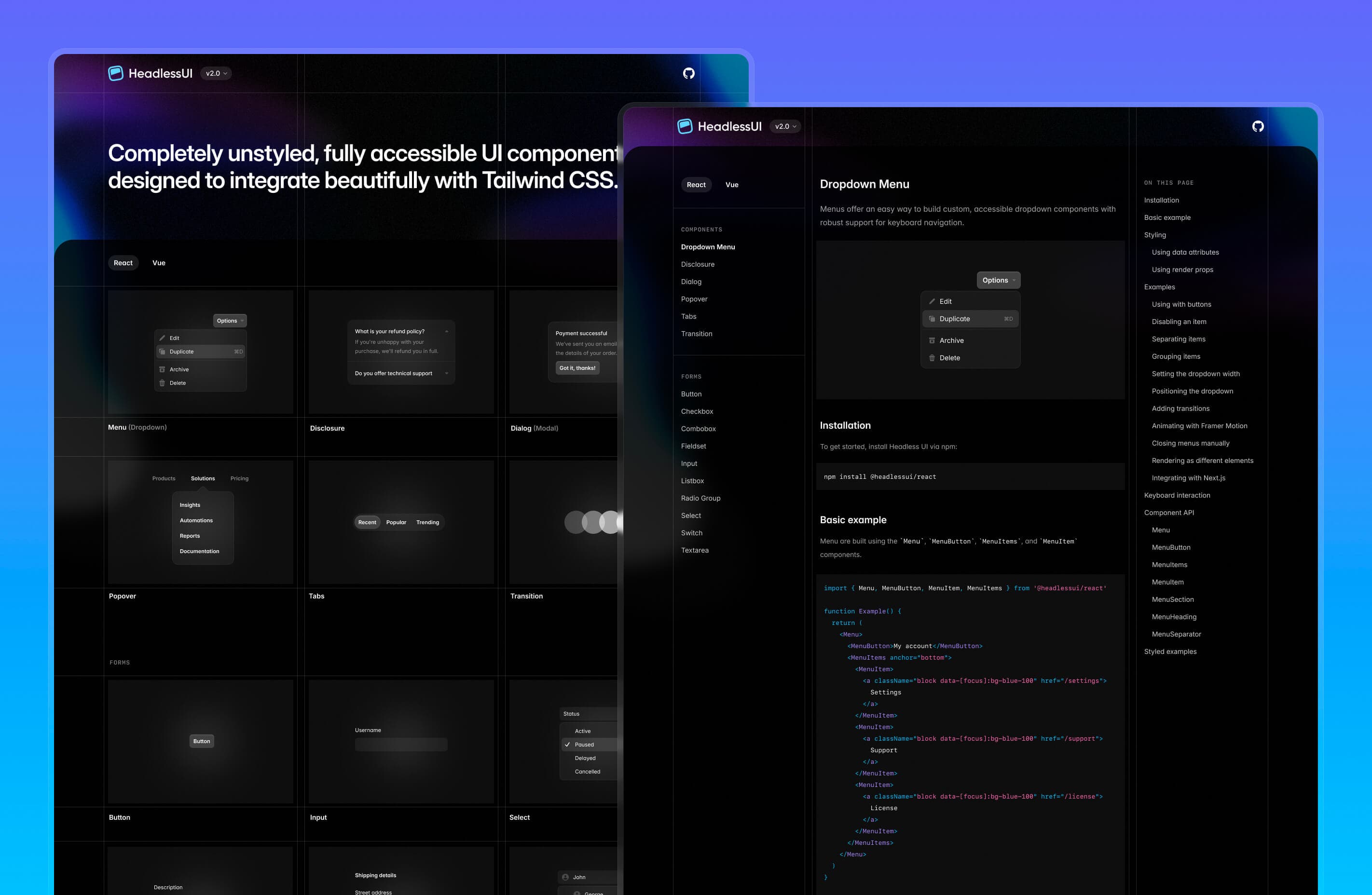
前往新的 headlessui.com 查看!